
Android OpenGL Texture and Animation
SummaryIn this post, I will continue with the previou post to demonstrate Android OpenGL texturing and animation. If you have not followed my previous post, you should do so before continuing.
We are going to write an app with the following display effect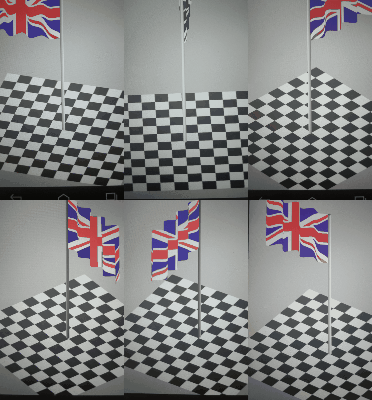
This is only a demonstration. The animation will be much smoother when running the acutal application .
Creating TextureFirst, we need to create the image files to use as texture. cd into Gles20App\app\ src\main\res and create a new folder "raw",
into which place the following 2 png files (flag.png and pole.png) :


Add a new Java class, GLesFlagScene. And cut/paste the following code:
public class GLesFlagScene {

    private FloatBuffer vertexBuffer;  // Buffer for vertex-array
    private FloatBuffer texBuffer;
    private int numIntervals = 32;  // The flag is divided into 32x32 rects
    private int poleStartIndex;

    private static int[] texIDs = { -1, -1 };
    private static int mShaderProgram = -1;

    public GLesFlagScene(Bitmap flagBitmap, Bitmap poleBitmap){

        if( mShaderProgram == -1) { // Load shader program and texture once
            mShaderProgram = GLesLetter.loadShaderProgram(
                vertexShaderCode, fragmentShaderCode);
            GLES20.glGenTextures(2, texIDs, 0); // Generate texture-ID array
            // Build Texture from loaded bitmap for the currently texture ID
            Bitmap[] bitmaps = new Bitmap[]{flagBitmap, poleBitmap};
            for(int i=0; i<2; i++) {
                GLES20.glBindTexture(GLES20.GL_TEXTURE_2D, texIDs[i]);
                GLES20.glTexParameterf(GLES20.GL_TEXTURE_2D,
                       GLES20.GL_TEXTURE_MIN_FILTER, GLES20.GL_NEAREST);
                GLES20.glTexParameterf(GLES20.GL_TEXTURE_2D,
                       GLES20.GL_TEXTURE_MAG_FILTER, GLES20.GL_LINEAR);
                GLUtils.texImage2D(GLES20.GL_TEXTURE_2D, 0, bitmaps[i], 0);
            }
        }

        float[] vertices = new float[12 +
                3 * numIntervals*2*(2+numIntervals) + 6];
        float[] texArray = new float[8 +
                2 * numIntervals*2*(2+numIntervals) + 4];

        // The checked floor geometry: 4 points
        vertices[0] = -1.0f;  // bottom-left
        vertices[1] = -1.0f;
        vertices[2] = vertices[5] = vertices[8] = vertices[11] = -1.0f;
        vertices[3] = 1.0f;   // bottom-right
        vertices[4] = -1.0f;
        vertices[6] = -1.0f;  // top-left
        vertices[7] = 1.0f;
        vertices[9] = 1.0f;   // top-right
        vertices[10] = 1.0f;
        for(int i=0; i<8; i++) texArray[i] = 0.0f;  // Dummy data, not used

        // The flag is divided into 32x32 rectangles, on the x-z plane, y=0
        float dw = 1.0f / numIntervals; // flag size if 1.0 x 0.8
        float dh = 0.8f / numIntervals;
        float dtx = 1.0f / numIntervals;  // Texture coord. inc per interval
        int kv = 12;  // Start index of vertex array
        int kt = 8;   // Start index of texture array
        float flagZ = 0.4f;
        for(int i=0; i<numIntervals; i++) {
            float x1 = dw * i;
            float x2 = x1 + dw;
            for(int j=0; j<numIntervals+1; j++){
                vertices[kv] = x1;
                vertices[kv+1] = vertices[kv+4] = 0.0f;  // y=0
                vertices[kv+2] = vertices[kv+5] = dh * j + flagZ;
                vertices[kv+3] = x2;
                kv += 6;
                texArray[kt] = dtx * i;
                texArray[kt+1] = 1.0f - dtx * j;
                texArray[kt+2] = dtx + dtx * i;
                texArray[kt+3] = 1.0f - dtx * j;
                kt += 4;
            }
        }
        // Start of flag pole
        poleStartIndex = kv / 3;
        float da = (float) Math.toRadians(360.0 / numIntervals);
        float r = 0.02f;
        for(int i=0; i<numIntervals+1; i++) {
            vertices[kv + 0] = (float) (Math.cos(da * i) * r - r);
            vertices[kv + 1] = (float) (Math.sin(da * i) * r);
            vertices[kv + 2] = 0.8f + flagZ;
            vertices[kv + 3] = vertices[kv];
            vertices[kv + 4] = vertices[kv + 1];
            vertices[kv + 5] = -0.99f;
            kv += 6;
            texArray[kt] = dtx * i;
            texArray[kt + 1] = 0.0f;
            texArray[kt + 2] = dtx * i + dtx;
            texArray[kt + 3] = 1.0f;
            kt += 4;
        }

        ByteBuffer vbb = ByteBuffer.allocateDirect(vertices.length * 4);
        vbb.order(ByteOrder.nativeOrder()); // Use native byte order
        vertexBuffer = vbb.asFloatBuffer(); // Convert from byte to float
        vertexBuffer.put(vertices);         // Copy data into buffer
        vertexBuffer.position(0);           // Rewind

        // Setup texture-coord-array buffer, in float. An float has 4 bytes
        ByteBuffer tbb = ByteBuffer.allocateDirect(texArray.length * 4);
        tbb.order(ByteOrder.nativeOrder());
        texBuffer = tbb.asFloatBuffer();
        texBuffer.put(texArray);
        texBuffer.position(0);
    }
    // Render the shape
    public void draw(float flagPhase, float rotateZ) {
        // Add program to OpenGL ES environment
        GLES20.glUseProgram(mShaderProgram);

        // get handle to vertex shader's vPosition member
        int mPositionHandle =
            GLES20.glGetAttribLocation(mShaderProgram, "aPosition");
        int mTexCoordinateHandle =
            GLES20.glGetAttribLocation(mShaderProgram, "aTexCod");

        // Enable a handle to the triangle vertices
        GLES20.glVertexAttribPointer(mPositionHandle, 3,
            GLES20.GL_FLOAT, false, 0, vertexBuffer);
        GLES20.glVertexAttribPointer(mTexCoordinateHandle, 2,
            GLES20.GL_FLOAT, false, 0, texBuffer);

        GLES20.glEnableVertexAttribArray(mPositionHandle);
        GLES20.glEnableVertexAttribArray(mTexCoordinateHandle);

        // Set the active texture unit to texture unit 0.
        GLES20.glActiveTexture(GLES20.GL_TEXTURE0);
        GLES20.glBindTexture(GLES20.GL_TEXTURE_2D, texIDs[0]);

        // Draw the floor
        GLES20.glDrawArrays(GLES20.GL_TRIANGLE_STRIP, 0, 4);

        // Draw the flag
        for(int i=0; i<numIntervals; i++) {
            GLES20.glDrawArrays(GLES20.GL_TRIANGLE_STRIP,
                   4+2*(1+numIntervals)*i, 2*(1+numIntervals));
        }

        // Draw the pole
        GLES20.glBindTexture(GLES20.GL_TEXTURE_2D, texIDs[1]);
        GLES20.glDrawArrays(GLES20.GL_TRIANGLE_STRIP,
               poleStartIndex, 2*numIntervals+2);

        // Disable vertex array
        GLES20.glDisableVertexAttribArray(mTexCoordinateHandle);
        GLES20.glDisableVertexAttribArray(mPositionHandle);
    }

    private static String vertexShaderCode =
            "attribute vec4 aPosition;" +
            "attribute vec2 aTexCod;" +
            "varying vec2 vTexCod;" +
            "void main() {" +
            "  gl_Position = aPosition;" +
            "  vTexCod = aTexCod;" +
            "}";

    private static String fragmentShaderCode =
            "precision mediump float;" +
            "uniform sampler2D uTexture;" +
            "varying vec2 vTexCod;" +
            "void main() {" +
                "gl_FragColor = vec4(1.0,0.0,0.0,1.0);" +
            "}";
}
Modify GLesSurfaceView.java file as follows:
 class GLesRender implements GLSurfaceView.Renderer {
     private GLesLetter mLetter;
     private GLesFlagScene mFlagScene;
     private int displayWidth;
     private int displayHeight;
     .....

     public void onSurfaceChanged(GL10 unused, int w, int h) {
        ....
        Bitmap bmpFlag = loadBitmap(R.raw.flag);
        Bitmap bmpPole = loadBitmap(R.raw.pole);
        mFlagScene = new GLesFlagScene(bmpFlag, bmpPole);
        bmpFlag.recycle();
        bmpPole.recycle();
     }

     @Override
     public void onDrawFrame(GL10 unused) {
         GLES20.glEnable(GLES20.GL_DEPTH_TEST);
         GLES20.glDepthFunc(GLES20.GL_LESS);
         GLES20.glClear(GLES20.GL_COLOR_BUFFER_BIT |
                        GLES20.GL_DEPTH_BUFFER_BIT);
         mLetter.drawText("1000", 1.0f, -1.0f, 0.0f);
         mFlagScene.draw(0.0f, 0.0f);
     }

    private Bitmap loadBitmap(int resID) {
        // Construct input stream to texture image, resID must be raw.bitmap
        InputStream stream = context.getResources().openRawResource(resID);
        Bitmap bitmap = null;
        try {
            bitmap = BitmapFactory.decodeStream(stream);
        } finally {
            try {
                stream.close();
            } catch(IOException e) { }
        }
        return bitmap;
    }
 }
Compile and run the application, we will see a red screen only. The reason should soon be come clear at the end of this section and we will address the issue in the next section.
Here, the model geometry needs some explanation. As shown in the picture below, the floor is made by 2 triangles. The floor is a plane at z=-1.
The flag is a big rectangle of 1.0x0.8 on the vertical x-z plane. The bottom of the flag is at z=0.4. The flasg is devided into 32 vertical triangle strips. This is constructed so that each strip can be passed to GlDraw(triangle strip) call easily. In the portion of a vertex aray representing a triangle strip, each vertex appear only once. Because a internal vertical line is shared by 2 strip, therefore its vertices will appear twice in the vertex array. The same goes for the texture coordinate array.

Because we are mapping the flag image onto the flag surface, top left corner will have (0,0) as texture coordinate. Bottom right is (1,1). The middle point of the flag is (0.5,0.5). Any other points are interpolated between 0 and 1.
The flag pole is a cylinder. The cylinder is sliced into strips along its length. If we role flat the strip, it is the same as a flag strip. Each strip is passed to one call of GLDraw(triangle strip). The texture mapping is so that the image is mapped onto 1 strip. therefore, on the bottom edge of the strip the texture coordinate is 0. On the top edge, it is 1. In the circumference directon, the texture coordinate is interpolated between 0 and 1.
For drawing text string, we have used in memory bitmaps as texture. Here, we are using png files as textures. We put the png file in the res/raw folder. Then use Android's load resource function to load them into memory before passing to the opengl engine. The is demonstrated in onSurfaceChanged() function when constructing the flag scene object.
3D ViewingWhen we run the application, we only see a red screen. This is because we are looking at the X-Y plane, by default. We only see the floor. The flag and flag pole is simple a line and circle on the x-y plane.. To get a 3D view, wee need to set a camera position. This is done by modifying the code as follows:
 public class GLesFlagScene {
     float[] mProjectionViewMatrix = new float[16];
     float[] mModelMatrix = new float[16];
     float[] mFinalMatrix = new float[16];

     private FloatBuffer vertexBuffer;  // Buffer for vertex-array
     private FloatBuffer texBuffer;
     ......

     public GLesFlagScene(Bitmap flagBitmap, Bitmap poleBitmap,
               float aspectRatio){
          if( mShaderProgram == -1) { //Load shader program and texture once
             mShaderProgram = GLesLetter.loadShaderProgram(
                vertexShaderCode, fragmentShaderCode);
         ....
         texBuffer = tbb.asFloatBuffer();
         texBuffer.put(texArray);
         texBuffer.position(0);

         // Set the camera position (offset, camera position,
         //   focus point,   up vector)
         float[] mViewMatrix = new float[16];
         Matrix.setLookAtM(mViewMatrix, 0, 1.0f, -1.0f, 1.0f,
              0.0f, 0.0f, 0.0f, 0.0f, 0.0f, 1.0f);
         // Setup our screen width and height and aspect ratio
         float viewH = 1.5f;  //Camera window height
         float[] mProjectionMatrix = new float[16];
         Matrix.orthoM(mProjectionMatrix, 0,
                 -aspectRatio*viewH, aspectRatio*viewH, -viewH,viewH,0,10);
         // Combine the projection and camera view matrices
         Matrix.multiplyMM(mProjectionViewMatrix,
                 0, mProjectionMatrix, 0, mViewMatrix, 0);
     }
     // Render the shape
     public void draw(float flagPhase, float rotateZ) {
         ......
         // get handle to vertex shader's vPosition member
         int mPositionHandle = GLES20.glGetAttribLocation(
              mShaderProgram, "aPosition");
         int mTexCoordinateHandle = GLES20.glGetAttribLocation(
              mShaderProgram, "aTexCod");
         int mMVPMatrixHandle = GLES20.glGetUniformLocation(
              mShaderProgram, "uMVPMatrix");
         Matrix.setIdentityM(mModelMatrix, 0);
         Matrix.rotateM(mModelMatrix, 0, -rotateZ, 0.0f, 0.0f, 1.0f);
         Matrix.multiplyMM(mFinalMatrix, 0,
              mProjectionViewMatrix, 0, mModelMatrix, 0);
         GLES20.glUniformMatrix4fv(mMVPMatrixHandle,
              1, false, mFinalMatrix, 0);
         ....
     }
     private static String vertexShaderCode =
             "attribute vec4 aPosition;" +
             "attribute vec2 aTexCod;" +
             "uniform mat4 uMVPMatrix;" +
             "varying vec2 vTexCod;" +
             "void main() {" +
             "  gl_Position = uMVPMatrix * aPosition;" +
             "  vTexCod = aTexCod;" +
             "}";
In he above code, we define a camera view matrix (setLookAtM()). The we define a projection matrix using "parallel projection" in this example. 3D perspective projection can be used as well. Notice the projection matrix also adjusts the aspect ration of the display so that the view will not be distorted. These 2 matrices are multiplied to give the final model to view transformation matrix.
At draw time, the transformation matrix is passed into the vertex shader through variable "uMVPMatrix". In the vertex shader, the given vertex coordinates are multiplied by the transformation matrix to give coordinates in the camera view space.
Checked Floor EffectNext, we'll modify the shader programs to show the checked (black white) effect. The changes necessary are as follows:
    private static String vertexShaderCode =
       ...
       "varying vec4 srcPosition;" +
       "void main() {" +
       "  gl_Position = uMVPMatrix * aPosition;" +
       "  vTexCod = aTexCod;" +
       "  srcPosition = aPosition;" +
       "}";

     private static String fragmentShaderCode =
        "precision mediump float;" +
        "uniform sampler2D uTexture;" +
        "varying vec2 vTexCod;" +
        "varying vec4 srcPosition;"
        "void main() {" +
        "  float x,y,z,c;" +
        "  x=srcPosition.x;  y=srcPosition.y;  z=srcPosition.z;" +
        "  if(z < -0.999) {" +
        "    if(mod(6.0*y + floor(mod(6.0*x,2.0)), 2.0) > 1.0) c=1.0; else c=0.1;" +
        "    gl_FragColor = vec4(c,c,c, 1.0);" +
        "  } else {" +
        "    gl_FragColor = texture2D(uTexture, vTexCod);" +
        "  }" +
        "}";
In the above, we pass the coordinate from vertex shader to the fragment shader using variable "varying vec4 srcPosition;". Due to the special location of the floor and flag, we assume that, when z < -0.999, the point is on the floor surface. If it is on the floor surface, then we need to assign black or white color depending on its (x,y) coordinates. For pixels on the flag and flag pole surfaces, we use the texture color.
Rotating the SceneThis is actually easy. We introduce a new variable, mSceneRotateZ. This is the angle to rotate the whole scene around z-axis. On each frame draw, this variable is increamented until 360 degrees, then reset to 0. This will continuously rotate the scene around the z-acis. The necessary code change are shown below:
class GLesRender implements GLSurfaceView.Renderer {
    private GLesLetter mLetter;
    private GLesFlagScene mFlagScene;
    private int displayWidth;
    private int displayHeight;
    private float mSceneRotateZ = 0.0f;
    ....

    public void onDrawFrame(GL10 unused) {
       GLES20.glClear(GLES20.GL_COLOR_BUFFER_BIT | GLES20.GL_DEPTH_BUFFER_BIT);
       GLES20.glEnable(GLES20.GL_DEPTH_TEST);
       GLES20.glDepthFunc(GLES20.GL_LESS);
       GLES20.glClear(GLES20.GL_COLOR_BUFFER_BIT | GLES20.GL_DEPTH_BUFFER_BIT);
       mLetter.drawText("1000", 1.0f, -1.0f, 0.0f);
       mSceneRotateZ += 0.3f;
       if(mSceneRotateZ >= 360.0) mSceneRotateZ = 0.0f;
       mFlagScene.draw(0.0f, mSceneRotateZ);
    }
Waving the Flag
Next, we want to animate the flag as if wind is blowing. We use a sine curve for the flag's lateral (in y) movement The magnitude of movement is linearly increased as x increases. The phase of the sine curve is also changing as time changes.
The waving effect is enabled through the following code changes:
GLesFlagScene.java
    public void draw(float flagPhase, float rotateZ) {
        // Add program to OpenGL ES environment
        GLES20.glUseProgram(mShaderProgram);
        .....

        int mMVPMatrixHandle = GLES20.glGetUniformLocation(
            mShaderProgram, "uMVPMatrix");
        int mPhaseHandle = GLES20.glGetUniformLocation(
            mShaderProgram, "phase");
        GLES20.glUniform1f(mPhaseHandle, (float)Math.toRadians(flagPhase));
        ....
    }
    ....
    private static String vertexShaderCode =
         "attribute vec4 aPosition;" +
         "attribute vec2 aTexCod;" +
         "uniform mat4 uMVPMatrix;" +
         "uniform float phase;" +
         "varying vec2 vTexCod;" +
         "varying vec4 srcPosition;" +
         "void main() {" +
         "  float x,y,z; vec4 newPos;" +
         "  x = aPosition.x;  y=aPosition.y;  z=aPosition.z;" +
         "  if(z > -0.5 && x >= 0.0)" +
         "     y = 0.08*sqrt(x)*(sin(phase+24.0*x)-sin(phase));" +
         "  newPos = vec4(x, y, z,1.0);" +
         "  gl_Position = uMVPMatrix * newPos;" +
         "  vTexCod = aTexCod;" +
         "  srcPosition = aPosition;" +
         "}";
GLesSurfaceView.java
class GLesRender implements GLSurfaceView.Renderer {
    private float mFlagPhase = 0.0f;
    ....
    public void onDrawFrame(GL10 unused) {
       ....
       mSceneRotateZ += 0.3f;
       if(mSceneRotateZ >= 360.0) mSceneRotateZ = 0.0f;
       mFlagPhase += 2.0f;
       if (mFlagPhase > 360.0) mFlagPhase = 0.0f;
       mFlagScene.draw(mFlagPhase, mSceneRotateZ);
    }
The flag's y-movement is a sine curve. It's phase (start) angle varies with time. The magnitude is sqrt(x), as shown in the following diagram:

Calculating the Frame Rate
Here we implement an algorithm that calculates the fps (frames per second). The fps is averaged over a set period of time (~10s in our code). By averaging, it prevents the fps display flicking too much.
class GLesRender implements GLSurfaceView.Renderer {
    ....
    private float mFlagPhase = 0.0f;
    private long mTimeAtLastFrame = System.currentTimeMillis();
    private long mAverageFps = 0;
    private long mDrawCount = 0;
    ....

    public void onDrawFrame(GL10 unused) {
         GLES20.glEnable(GLES20.GL_DEPTH_TEST);
         GLES20.glDepthFunc(GLES20.GL_LESS);
         GLES20.glClear(GLES20.GL_COLOR_BUFFER_BIT |
               GLES20.GL_DEPTH_BUFFER_BIT);

         long cur_time = System.currentTimeMillis();
         long delta_time = cur_time - mTimeAtLastFrame;
         mTimeAtLastFrame = cur_time;
         long fps = delta_time == 0 ? 999 : 1000 / delta_time;
         if( mDrawCount == 1 ) mAverageFps = fps;
         else if(mDrawCount > 1) {
             mAverageFps = (mAverageFps * (mDrawCount-1) + fps)/mDrawCount;
         }
         mLetter.drawText(" " + mAverageFps) + " ", 1.0f, -1.0f, 0.0f);
         if( mDrawCount++ > 900) mDrawCount = 1;  // Average over last ~15s
         ....
    }
Summary
In this post, I have shown how texture coordinate mapping works. I demonstrated 3D viewing by setting camera position. An entire scene can be rotated by simply rotating the model around an axis. This demonstrates the workings of model transformation, view transformation.
By manipulating the vertex shader program, we can further transform the objects geometry (flag waving effect). While in the fragment shader program, we can assign different collors for each individual pixels.
Finally, I have shown a way of calculating the frame rate.
Full source can be download here flag_src.zip